
Organizations & teams
The shared workspace, with its members, roles, invitations, settings and dashboard.
An organization is where a team builds together. It owns the agents, the file library, the wallet and the analytics, and each member's role decides what they can change.
Creating one
Click your name in the sidebar, then Create Organization. Name it, confirm the address, and you're done. Create your organization walks through it.
What's inside
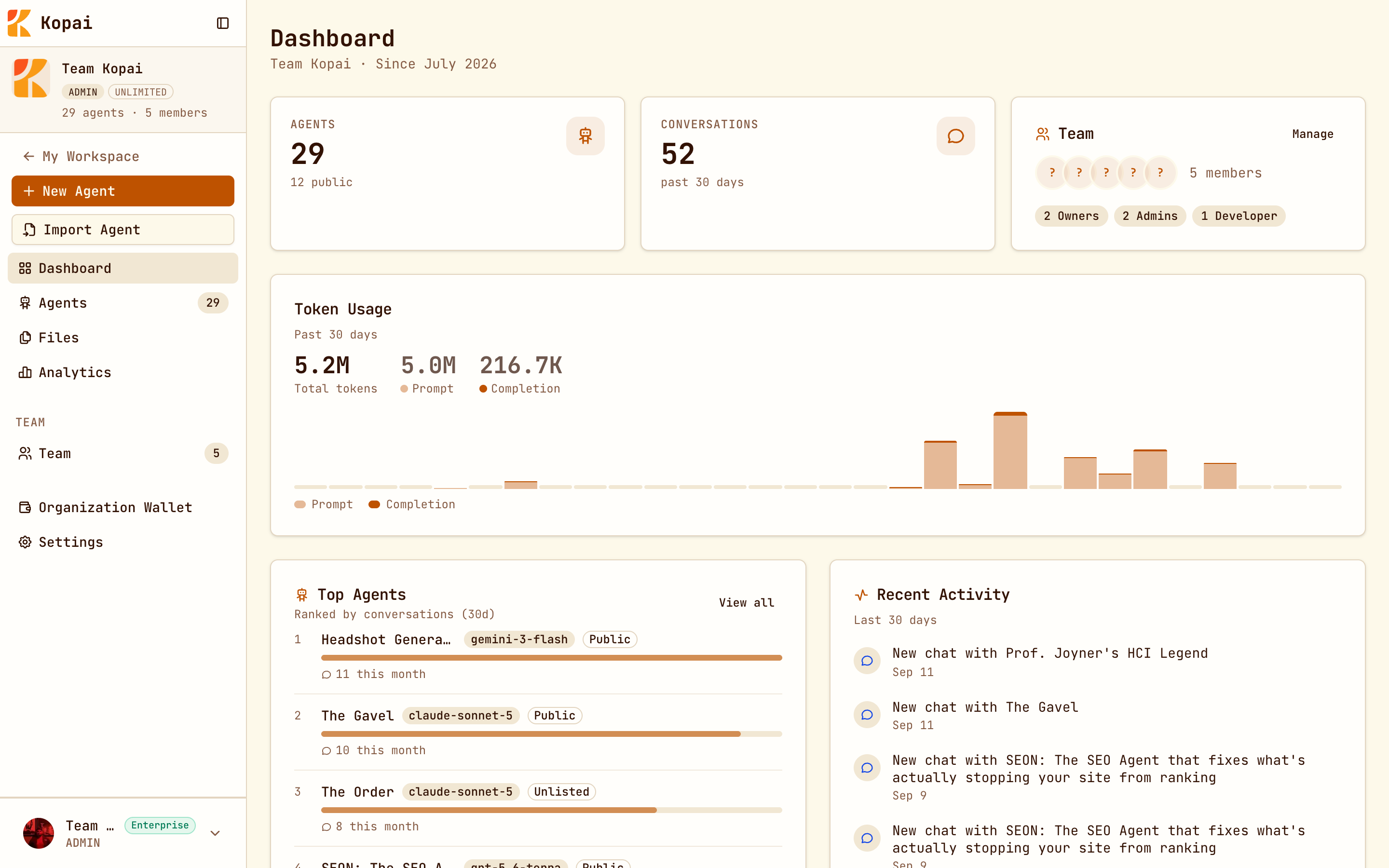
| Section | What it holds |
|---|---|
| Dashboard | Agent and conversation counts, token usage over 30 days, top agents, recent activity. |
| Agents | Every agent the org owns, with its status and quality score. |
| Files | The shared file library. See Knowledge base. |
| Analytics | Usage, people, performance and cost. Paid plans. See Analytics. |
| Team | Members, roles and invitations. |
| Organization Wallet | The plan, who pays for runs, and marketplace earnings. |
| Settings | Name, logo, address, description, billing and API keys. |
Roles
There are four roles, and the differences are real.
| Role | In one line |
|---|---|
| Owner | Everything, including billing, ownership and deleting the org. At most three per org. |
| Admin | Everything an owner can do except delete the org or change an owner's or another admin's role. |
| Developer | Builds and manages agents, files, pricing and API keys. Can't manage people or billing. |
| User | Views the org, dashboard and agents. Creates nothing. |
Two rules are enforced for you: an organization can have at most three owners, and never zero, so the last owner can't be removed or demoted.
Developer is the right default for most people. It lets someone do the actual work without handing them the wallet.
Inviting people
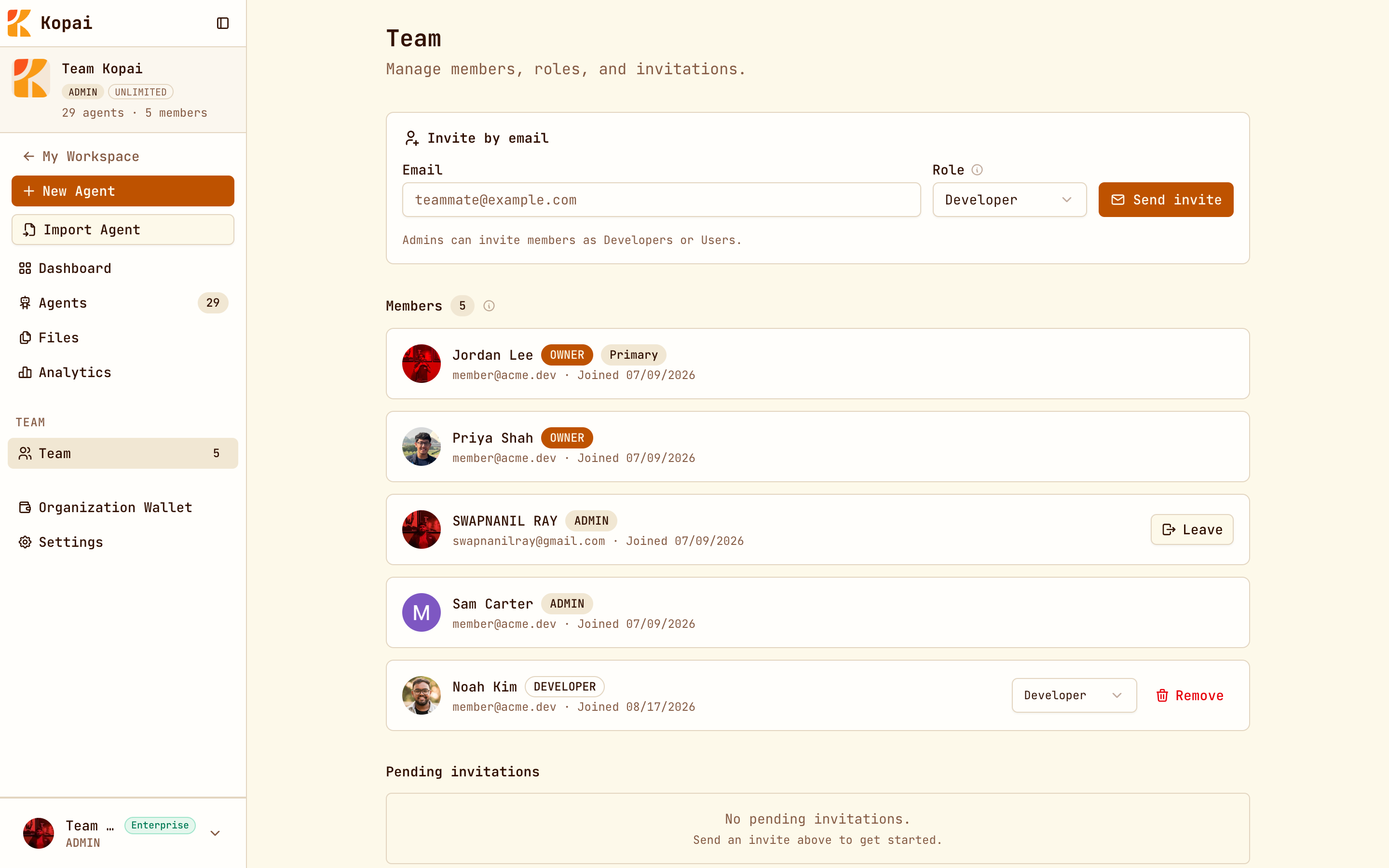
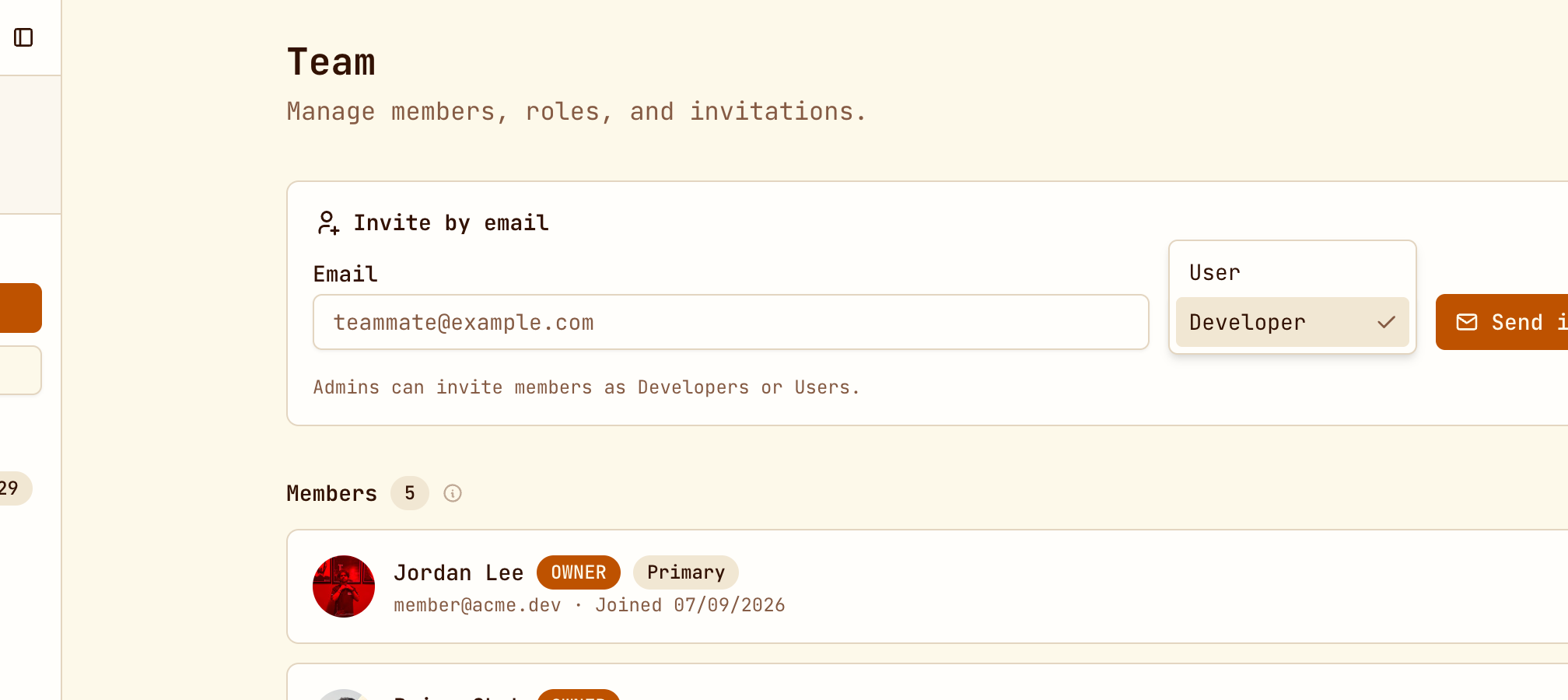
Org → Team → Invite by email. Enter the address, pick a role, and send. They get an email with a link that expires after seven days.
Who can invite whom:
- Owners can invite people at any role.
- Admins can invite developers and users only.
- Developers and users can't invite anyone.
Pending invitations are listed below the members and can be revoked. Seats count members and pending invitations against your plan limit, so revoke old invites if you're near the cap.
Changing roles and removing people
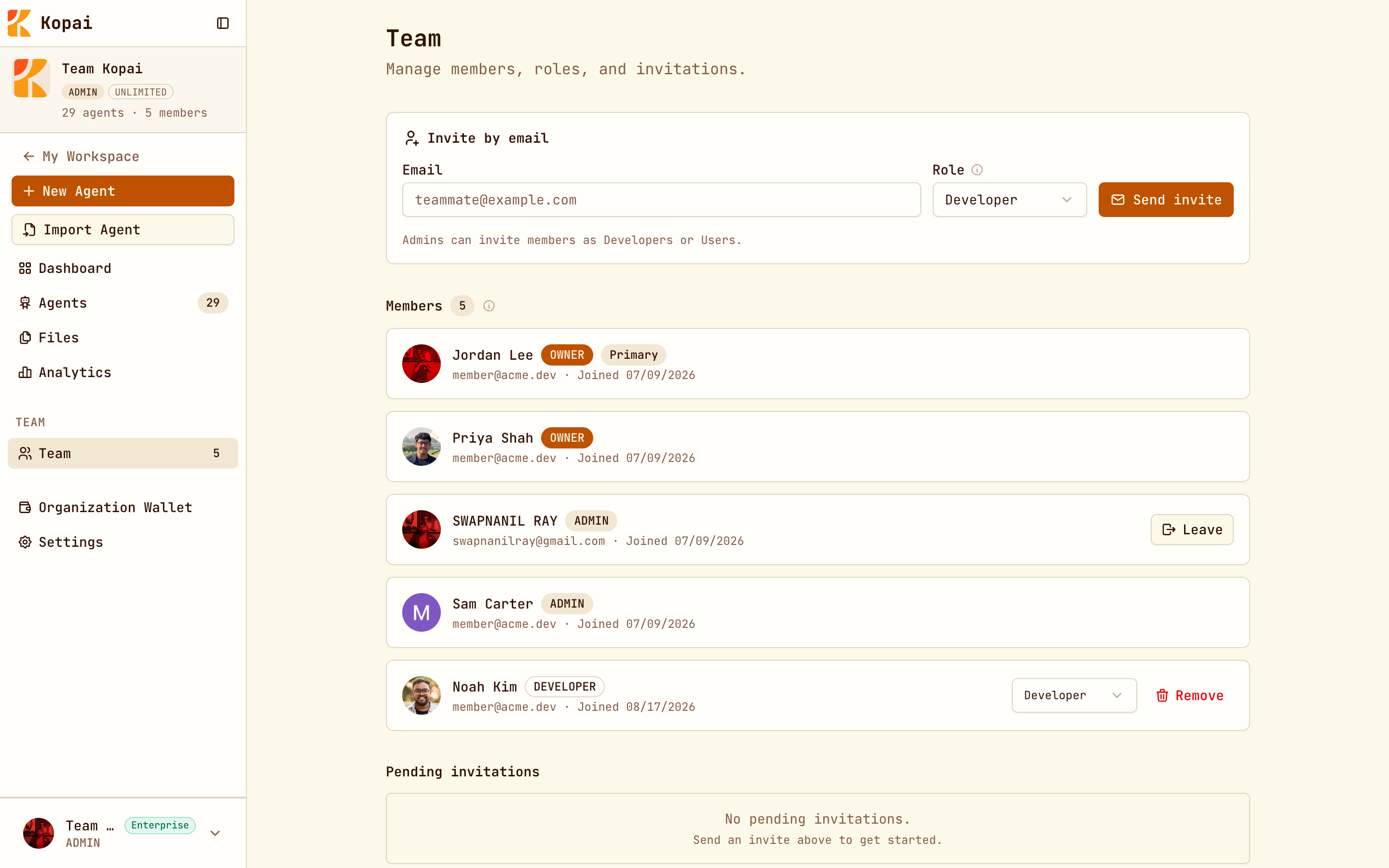
Use the role dropdown on a member's row, and the change applies immediately. Admins can't modify owners or other admins, and nobody can change their own role.
Remove someone from their row: Remove for other people, Leave for yourself. Their access to everything in the org ends immediately.
Settings
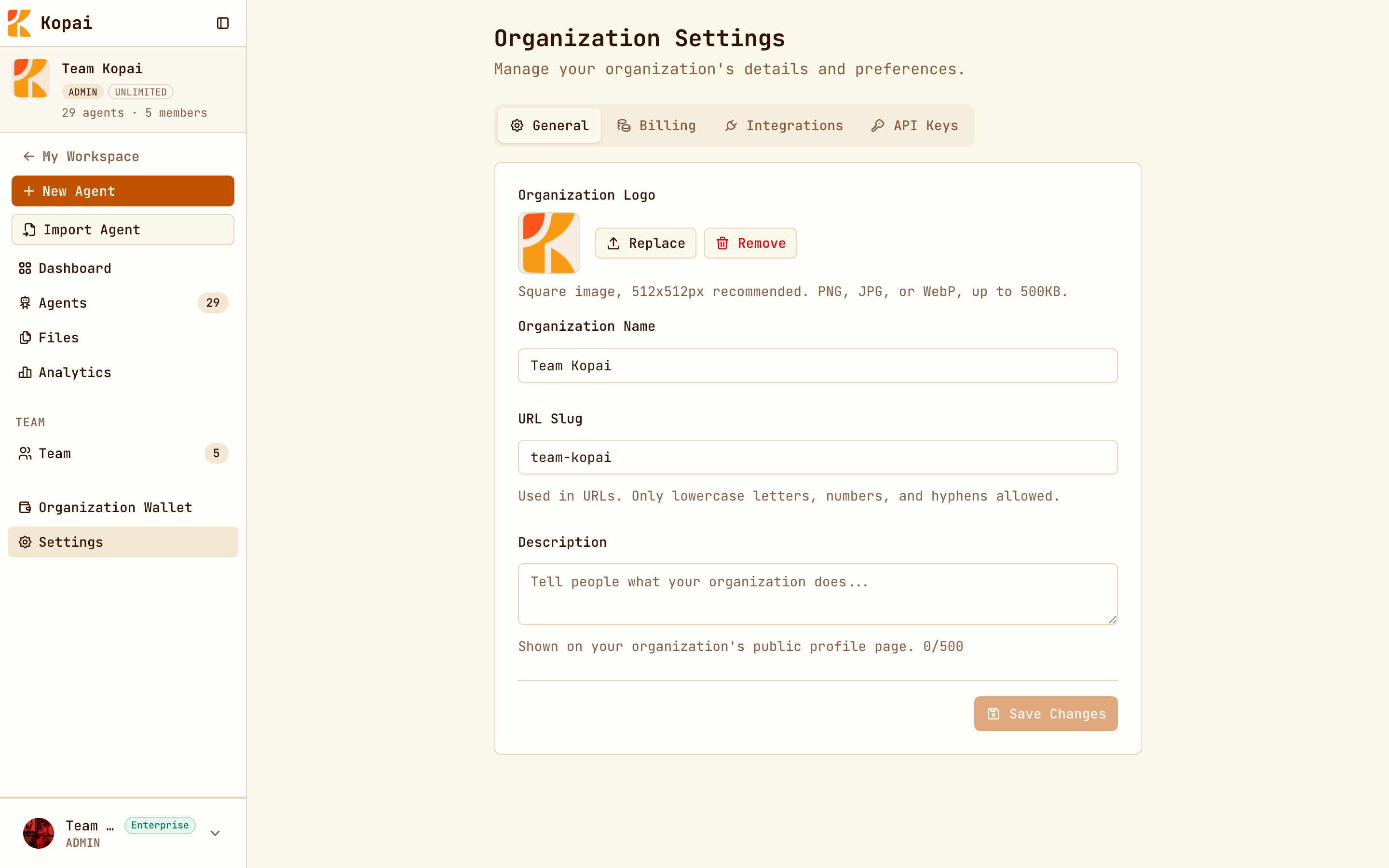
Org → Settings has these tabs:
- General: logo (square, 512 × 512 recommended, PNG, JPG or WebP up to 500 KB), name, address, and a description of up to 500 characters for your public profile.
- Billing: who pays for private agent runs.
- Integrations: app connections for the organization.
- API Keys: organization keys for the API. Paid plans.
- Danger Zone: deleting the organization. Owners only.
Deleting an organization is permanent
It takes the agents, documents, members, invitations and wallet data with it, and published agents disappear from the marketplace. There's no undo.
Your public profile
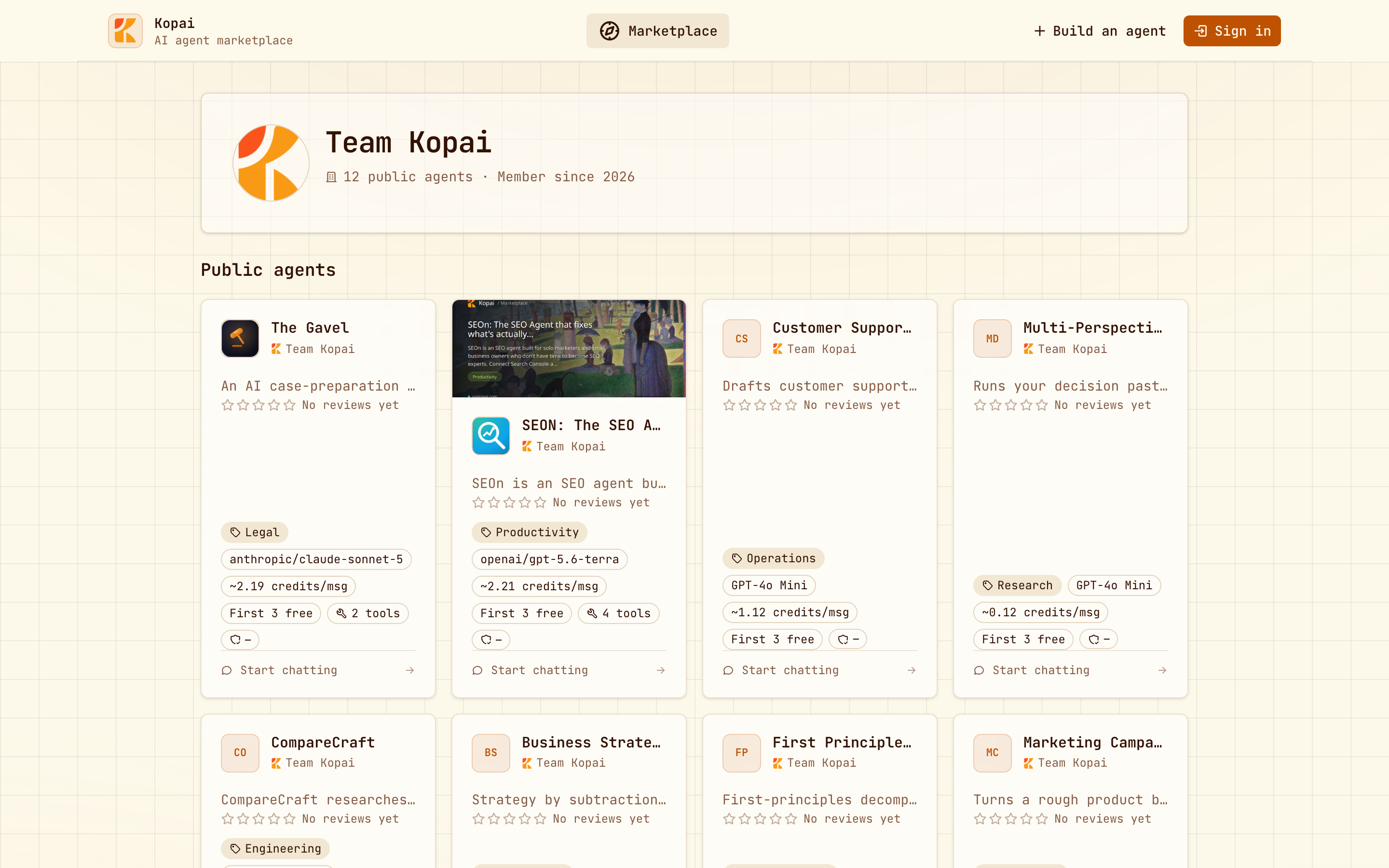
Every organization has a public page at usekopai.com/org/your-slug listing its public agents, with your logo and description. It's where people land after clicking your name on a marketplace card, so fill it in if you publish.
Switching between organizations
Click your name in the sidebar. Each organization is completely separate, with its own agents, files, wallet and team. ⌘P returns to your personal workspace.