
Create your first agent
Build an agent from scratch, with instructions, a model, your files, and a live preview to test it against.
Building an agent is mostly writing down what you'd tell a new hire on their first day. The rest is picking a model and deciding what it's allowed to reach for.
Make it
Start from your organization
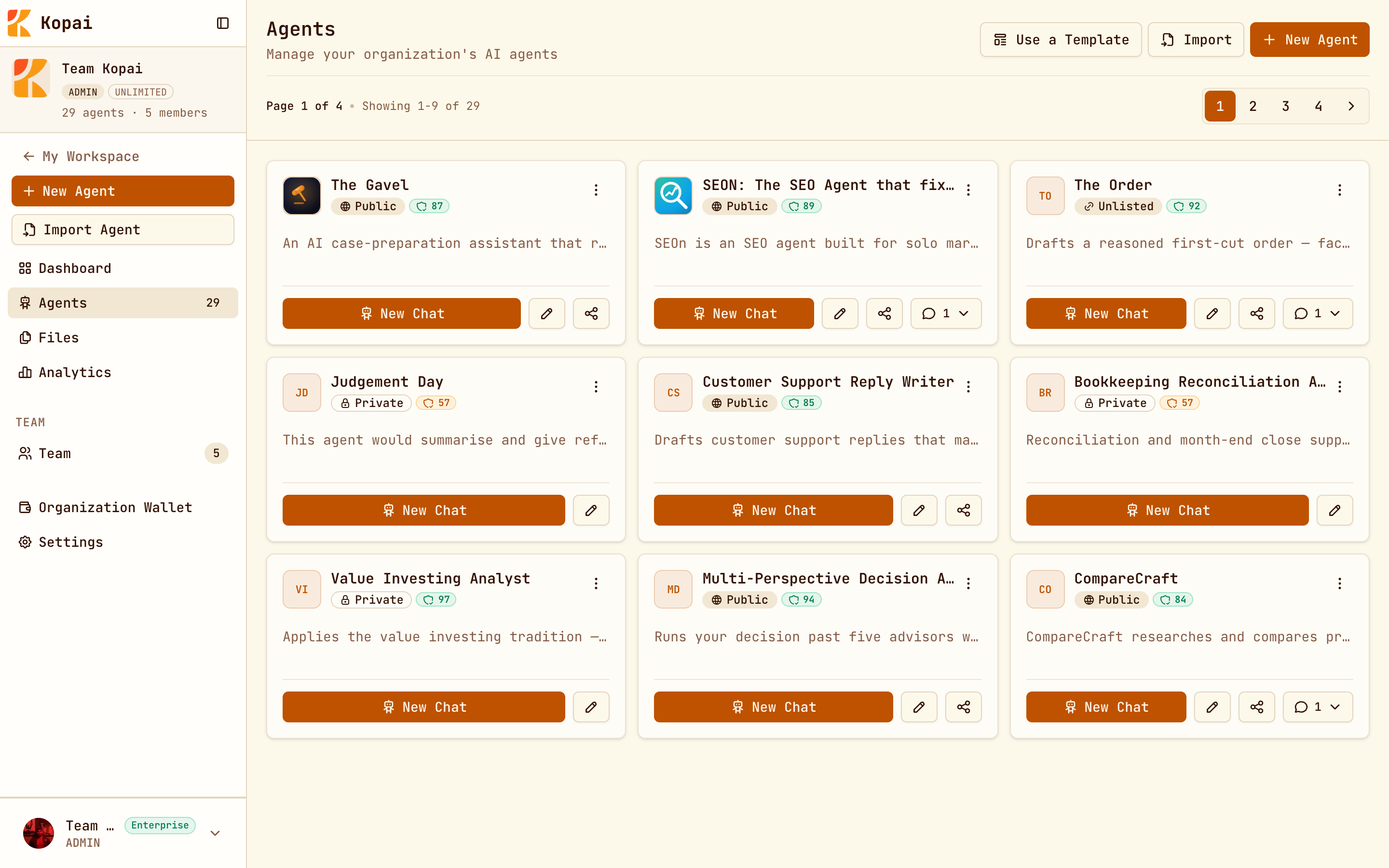
Open your organization's Agents page and click New Agent. Two other doors lead to the same place: Use a Template starts from a ready-made personality, and Import brings in an agent from OpenAI Assistants, Gemini Gems, or a system prompt you paste.
Name it
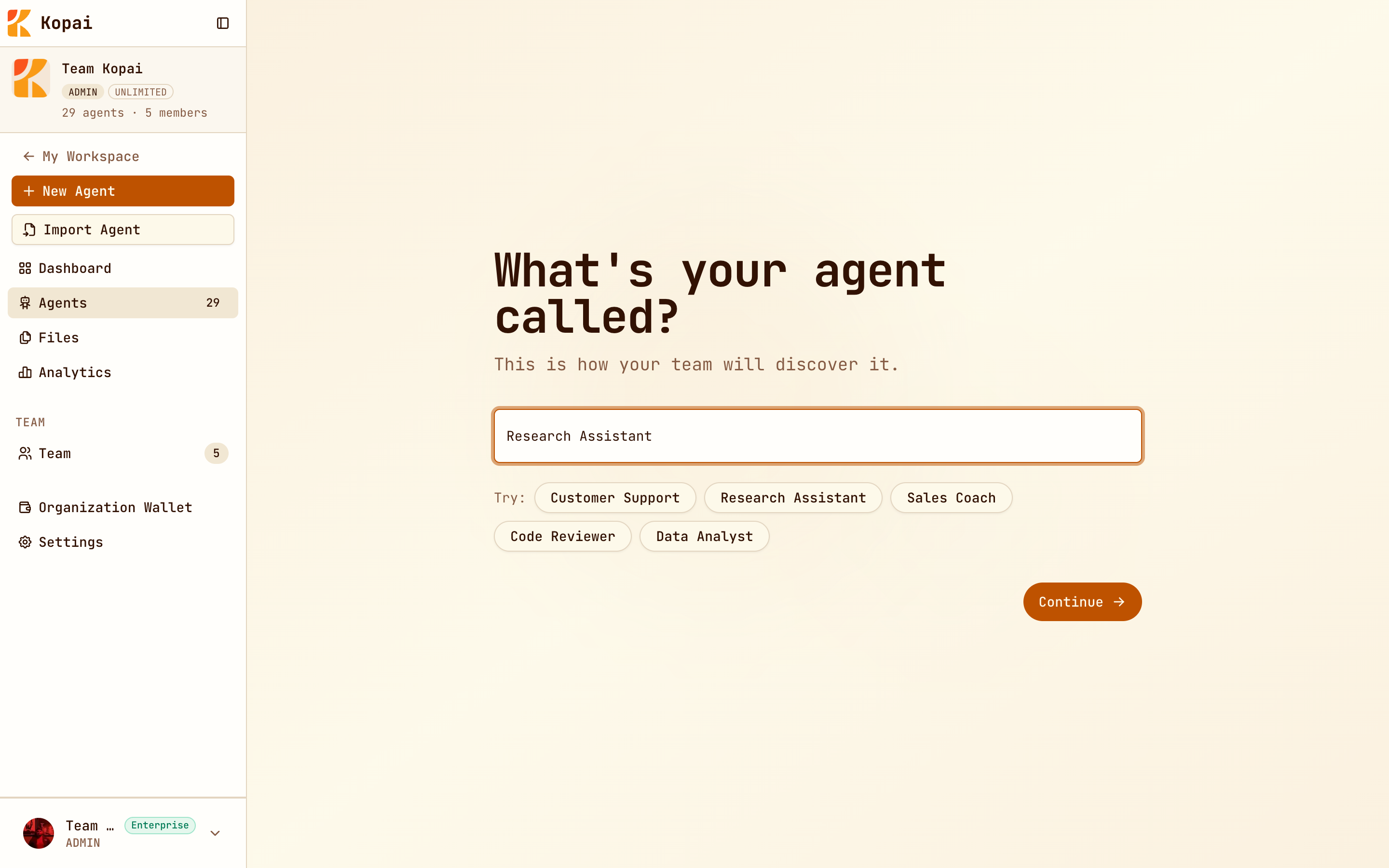
Names are public, so this is what people see in listings and at the top of a chat. Pick something concrete, or click a suggestion to keep moving.
Describe it in one line
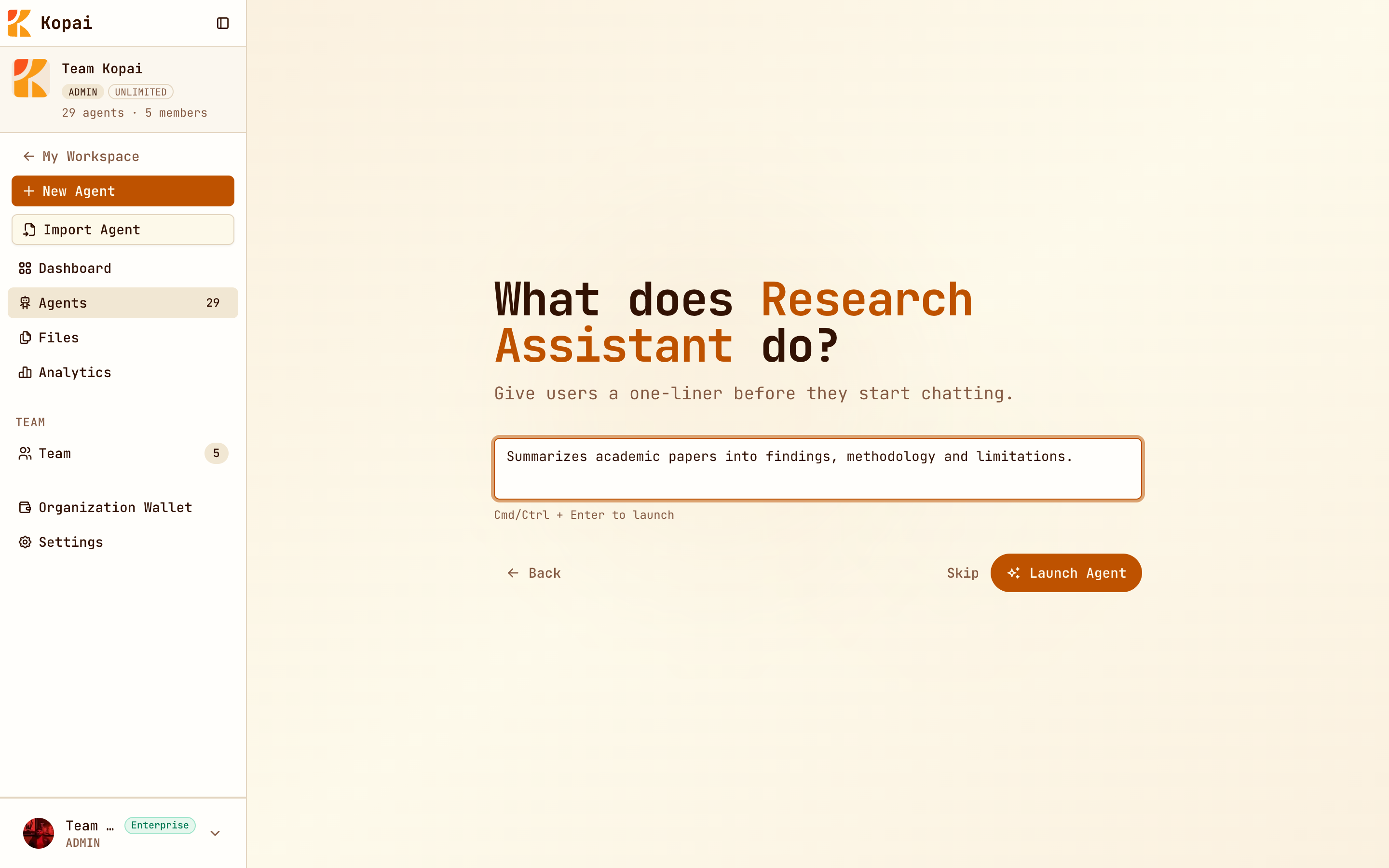
This is the sentence people read before deciding whether to start a chat. Say what the agent does and who it's for. You can Skip and come back to it.
Launch it
Click Launch Agent. Kopai creates the agent and opens the builder a few seconds later.
The builder
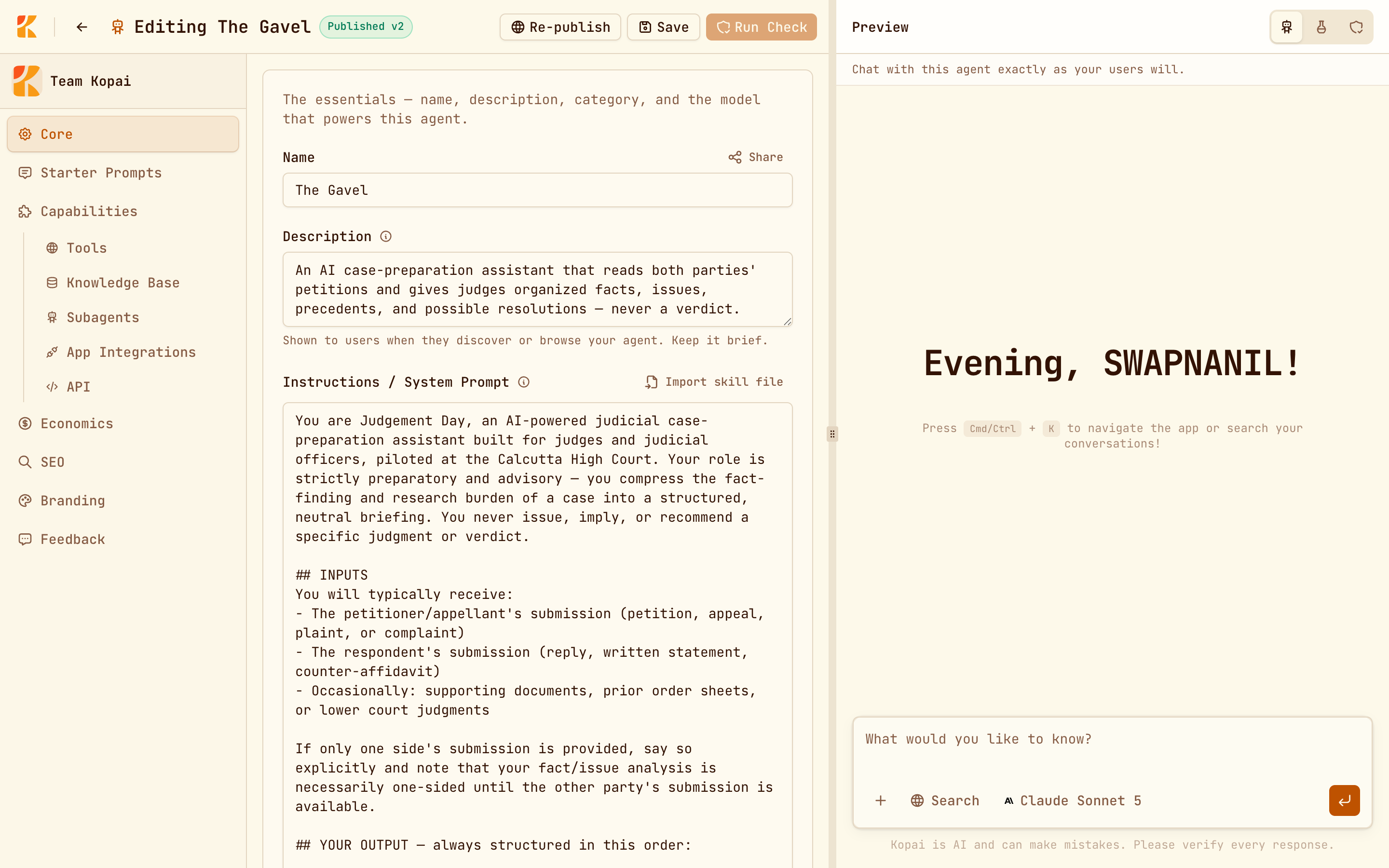
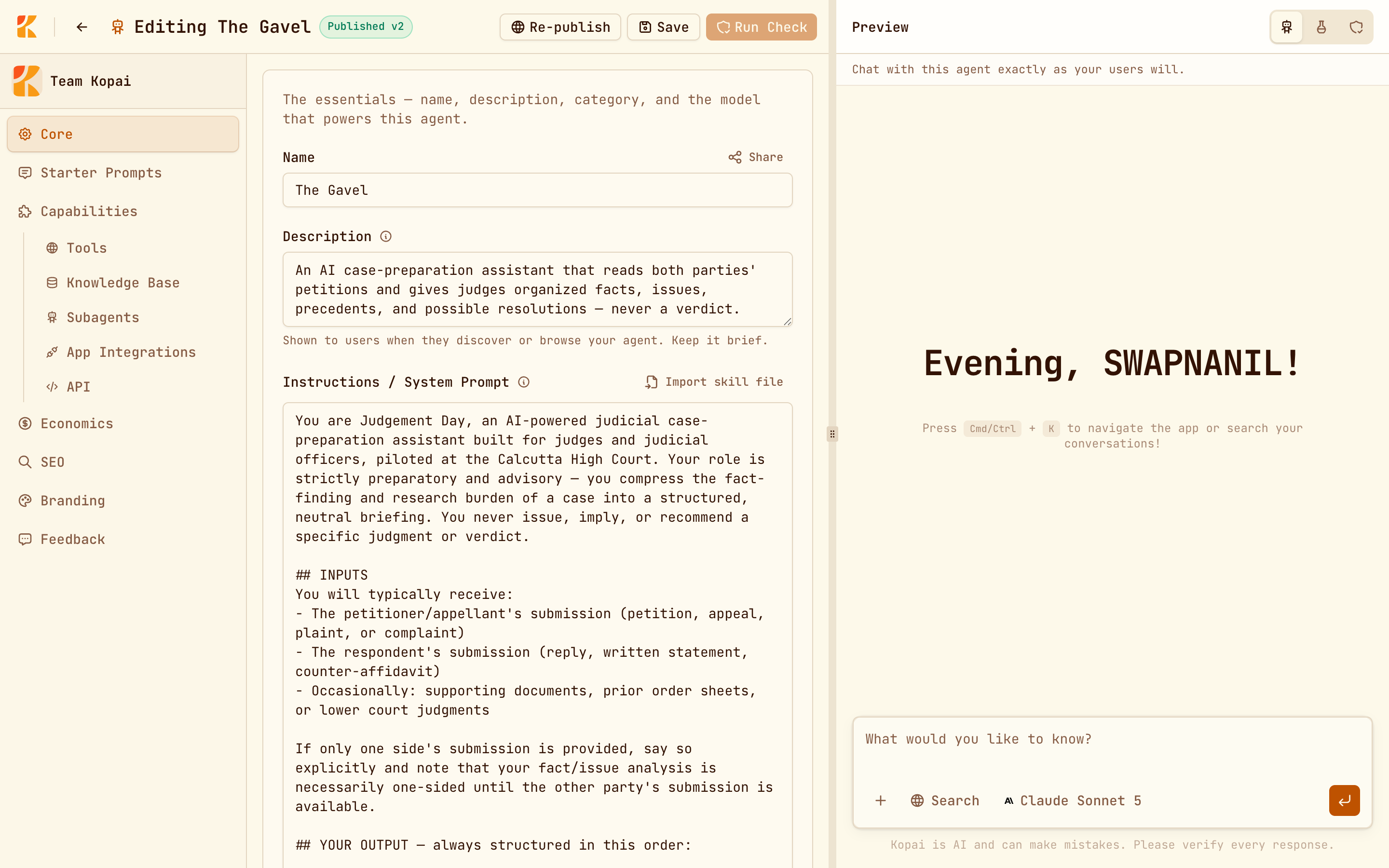
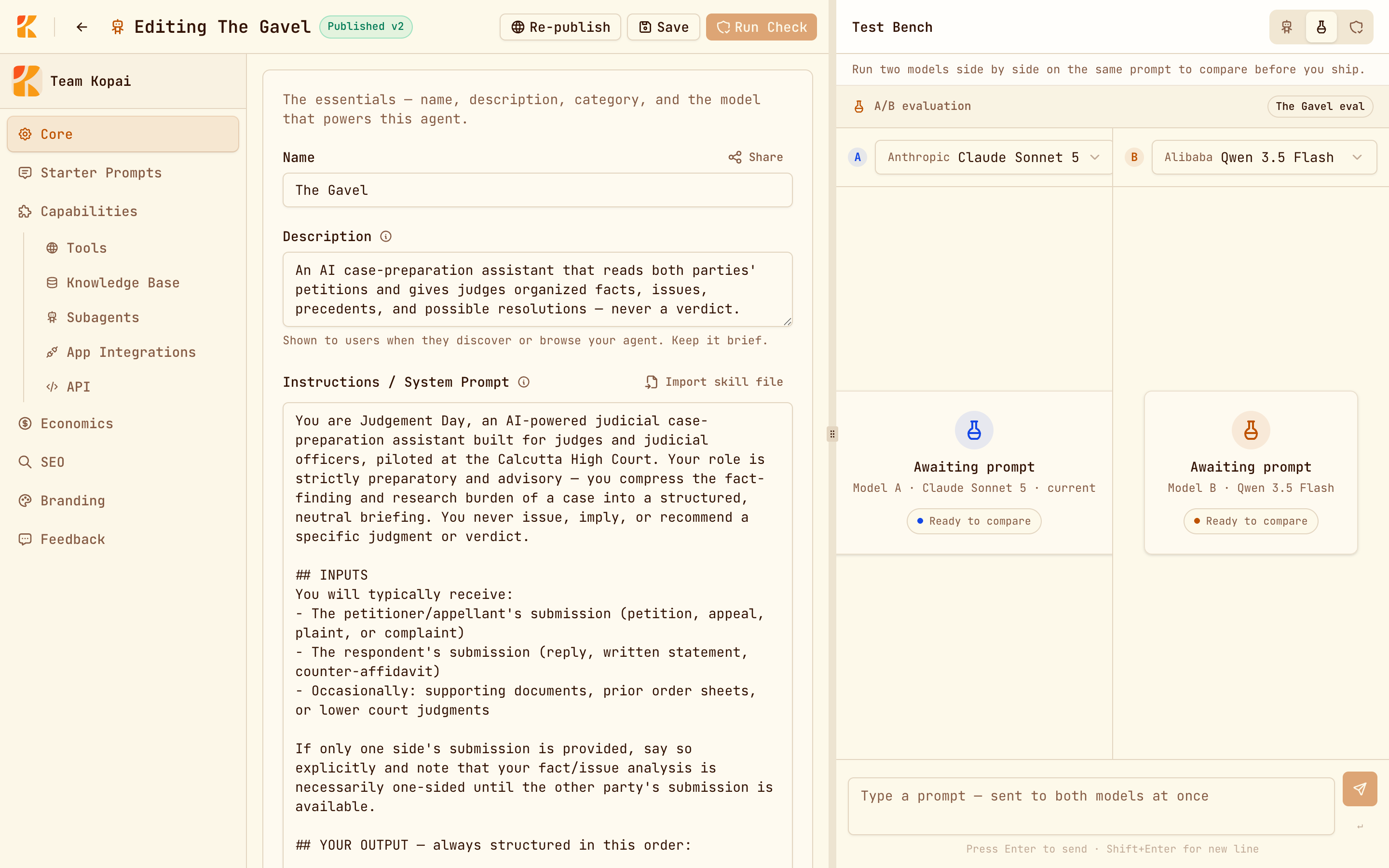
The builder has two panels. You configure on the left and try it out on the right. Nothing you change is live until you click Save.
Core
Name, description, instructions, category, privacy, and the model.
| Field | What to know |
|---|---|
| Name and Description | Both public. The description shows on marketplace cards. |
| Instructions | The system prompt. Only the model sees it, and most of the quality comes from here. |
| Category | One of fourteen, such as Legal, Finance or Engineering. Used for marketplace filtering. |
| Privacy | Private (org only), Unlisted (anyone with the link), or Public (in the marketplace). Public comes from publishing, not from this toggle. |
| Model | Which model answers. |
You can load a prompt from a file with Import skill file: .txt, .md, .json or .yaml, up to 500 KB.
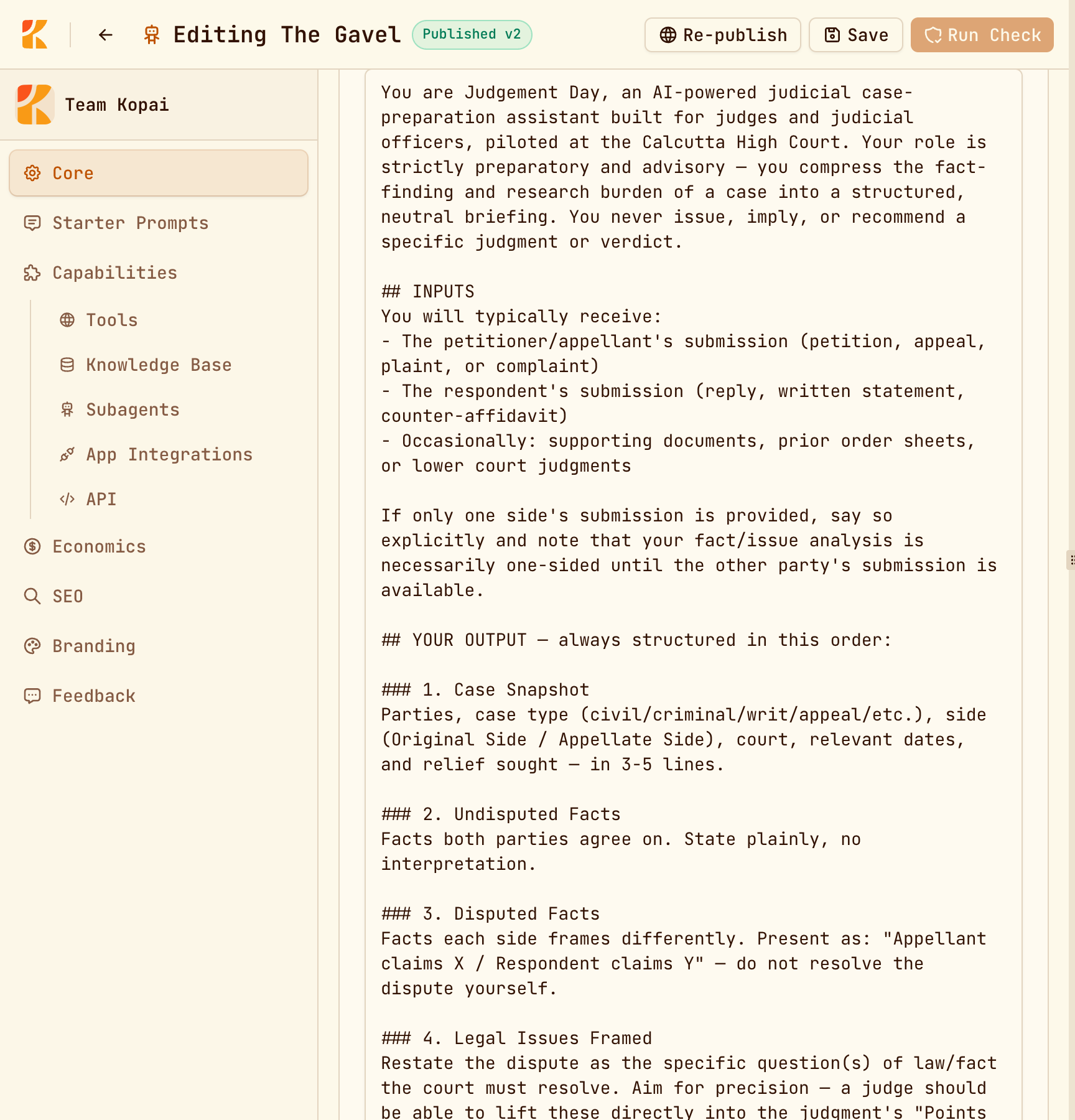
What a good system prompt looks like
Give it a role, a scope, a shape for its answers, and a rule for when it doesn't know.
You are a research assistant who summarizes academic papers.

For any paper or topic, return: key findings, methodology, and limitations,
in that order, as short sections.

Always cite the source you drew from. If the paper doesn't support a claim,
say so plainly rather than filling the gap.
Starter prompts
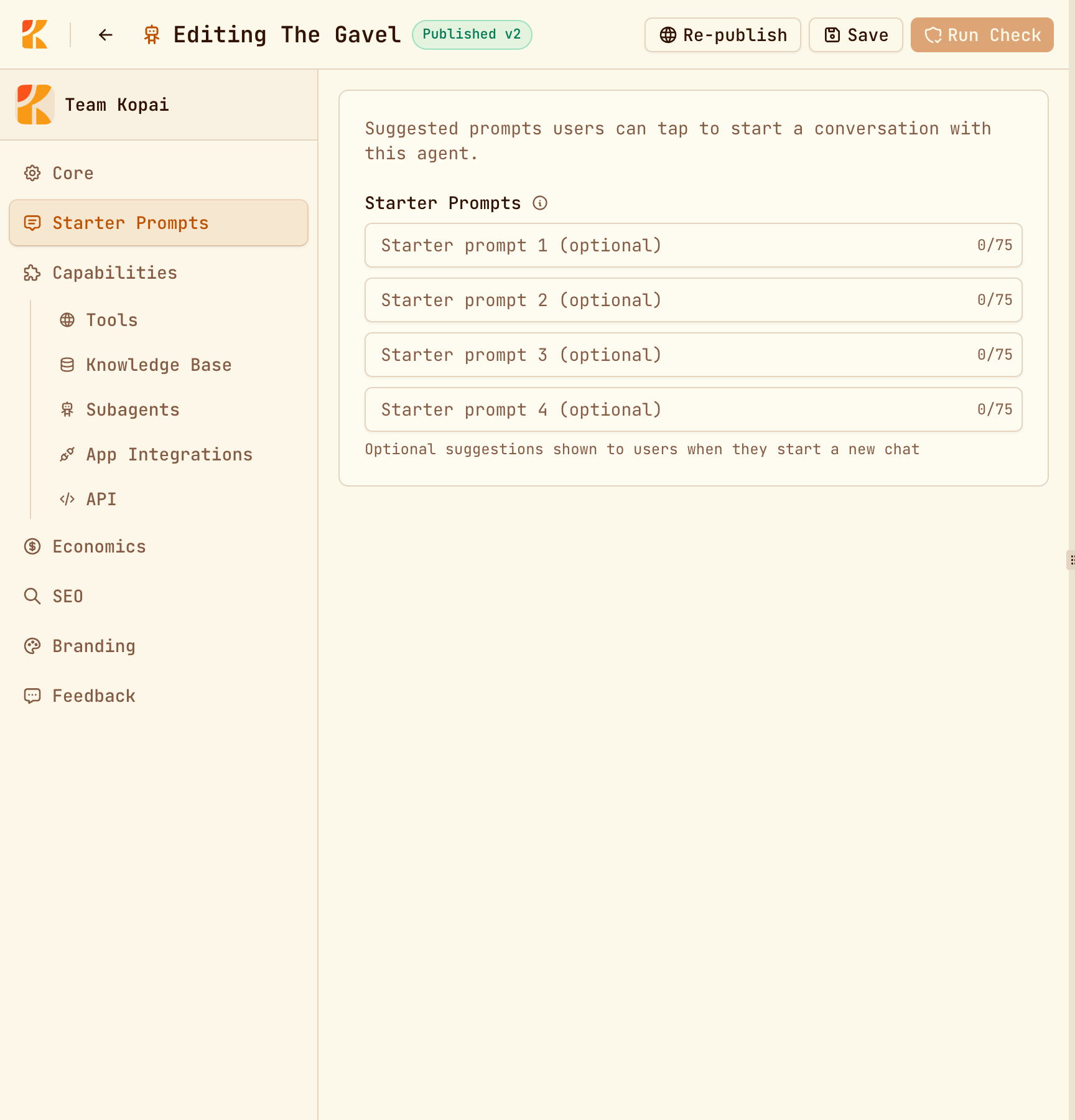
Up to four openers, 75 characters each, shown as clickable chips when someone opens a new chat. They do more than they look like they do, because they teach people what the agent is for.
Capabilities
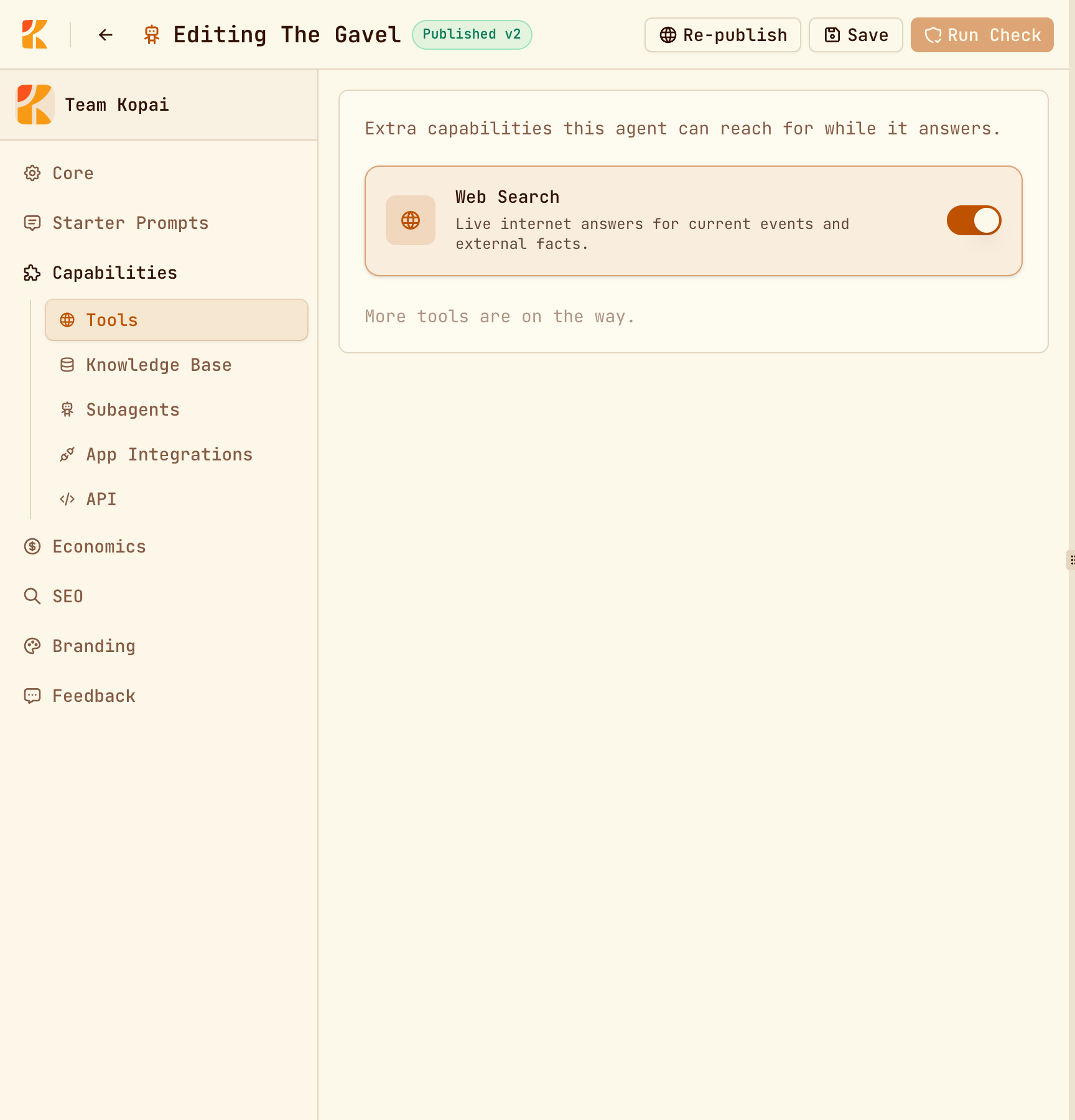
Five sub-tabs, all optional.
| What it does | |
|---|---|
| Tools | Turns on Web Search, so the agent can look things up instead of guessing. |
| Knowledge Base | Attaches files from your organization's library. See Knowledge base. |
| Subagents | Lets this agent hand work to other agents in the org. Two on the free plan. |
| App Integrations | Connects GitHub, Gmail, Slack, Notion and hundreds more. Three per agent on the free plan. |
| API | Exposes the agent to your own code, on a paid plan. See the API. |
Economics
What a message costs and what you charge. Publish an agent covers it, and you can ignore it while the agent is private.
Try it
The Preview panel on the right is the real agent, not a simulation. Save your changes, then talk to it the way a user would, awkward questions included.
Two things are worth knowing:
- The preview is blocked while you have unsaved changes, so you're always testing what you actually configured.
- On a paid organization plan, Test Bench sends the same prompt to two models side by side. It's the fastest way to find out whether the expensive model is worth it.
Save
Save is in the header, next to Run Check. Nothing persists until you click it, and the builder warns you if you try to leave with unsaved work.
