Chat with an agent
Find an agent, start a conversation, attach files, and understand what you're charged.
You can talk to any agent you have access to: your own, your organization's, or any public one on the marketplace.
Finding one
On the marketplace
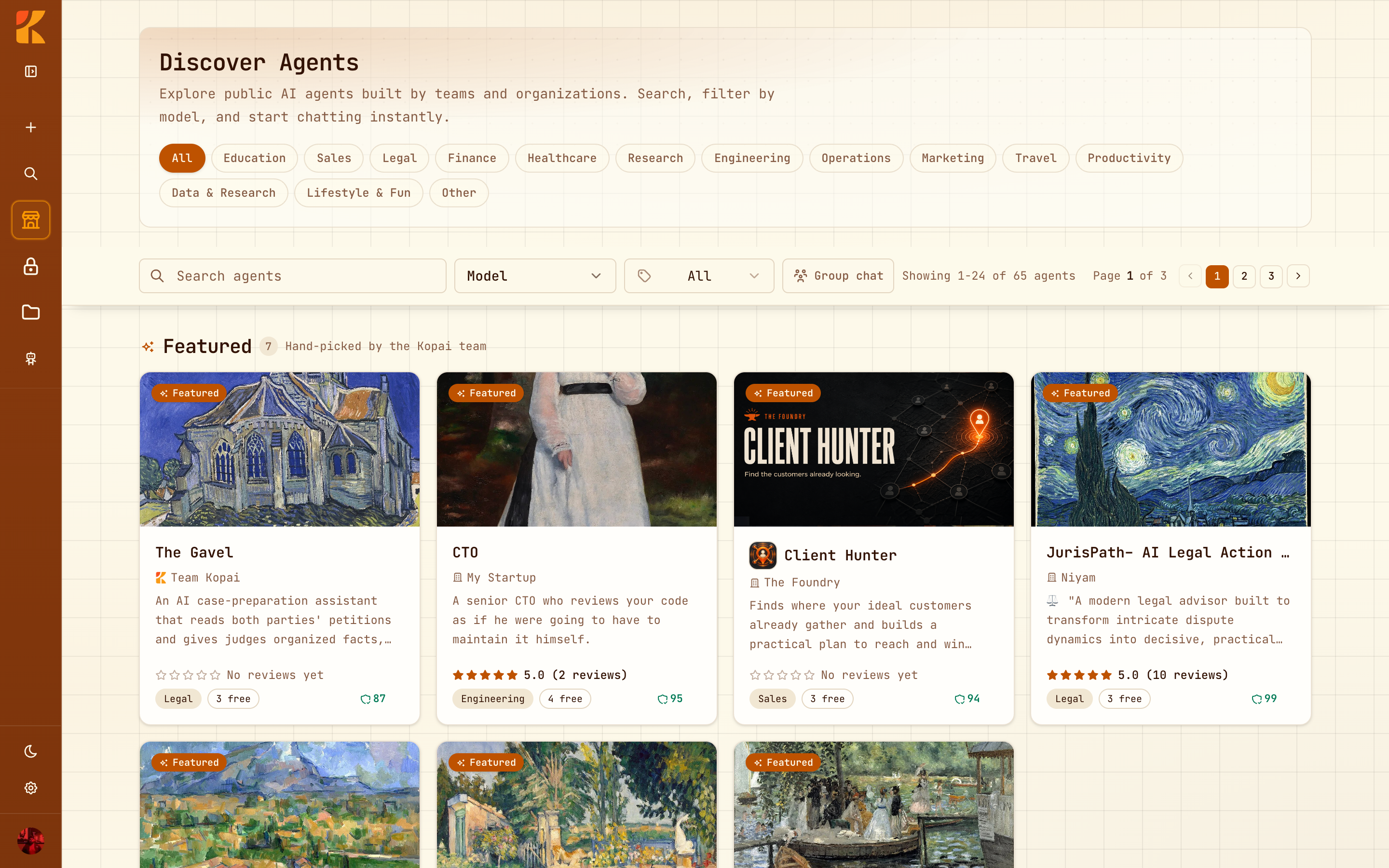
Open the marketplace
Click Agent Marketplace in the sidebar. Filter by category or model, or search by name.
Read the details
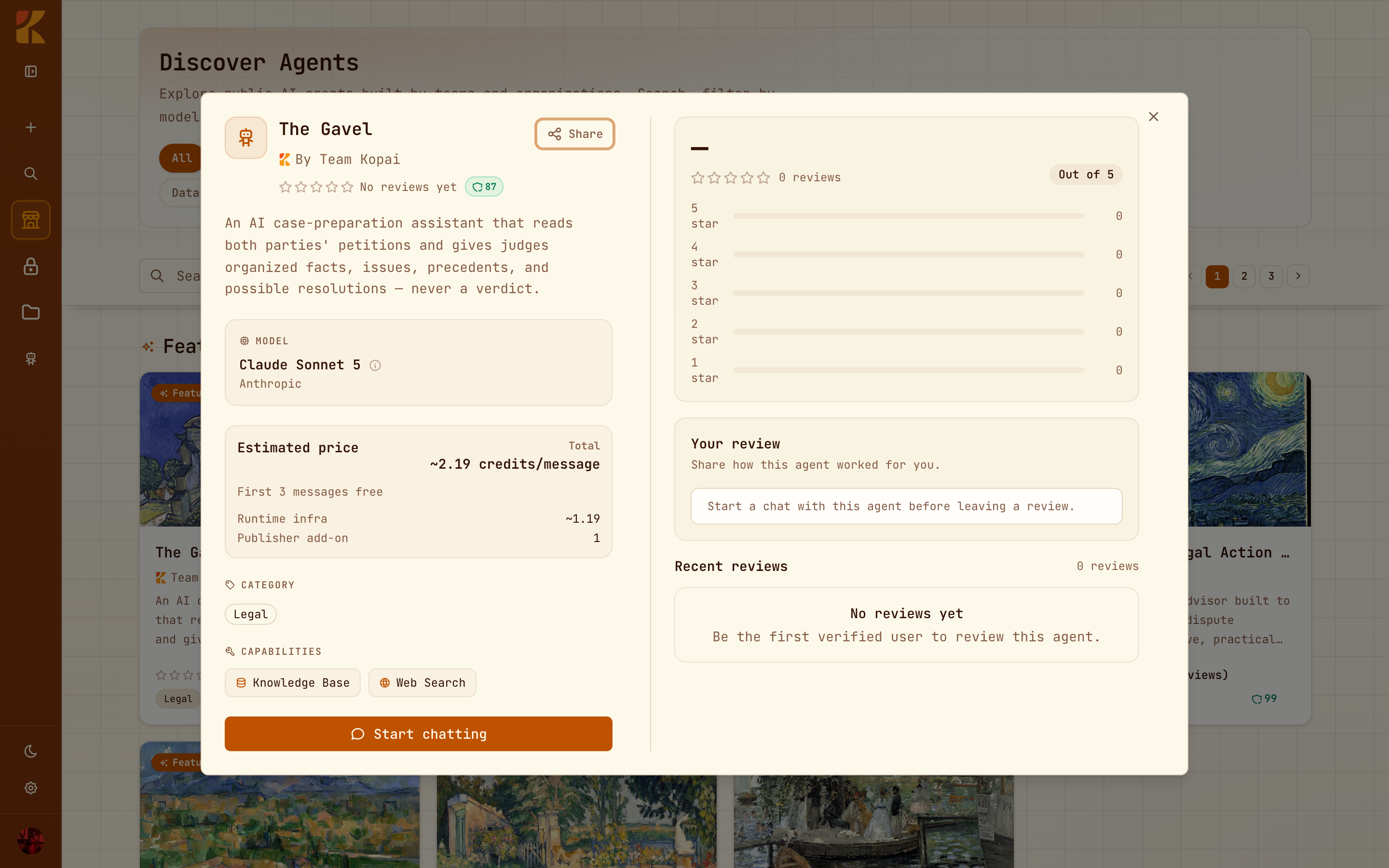
Click a card to see the full description, the exact price split, the model, what the agent can do, and reviews from people who've used it.
Start chatting
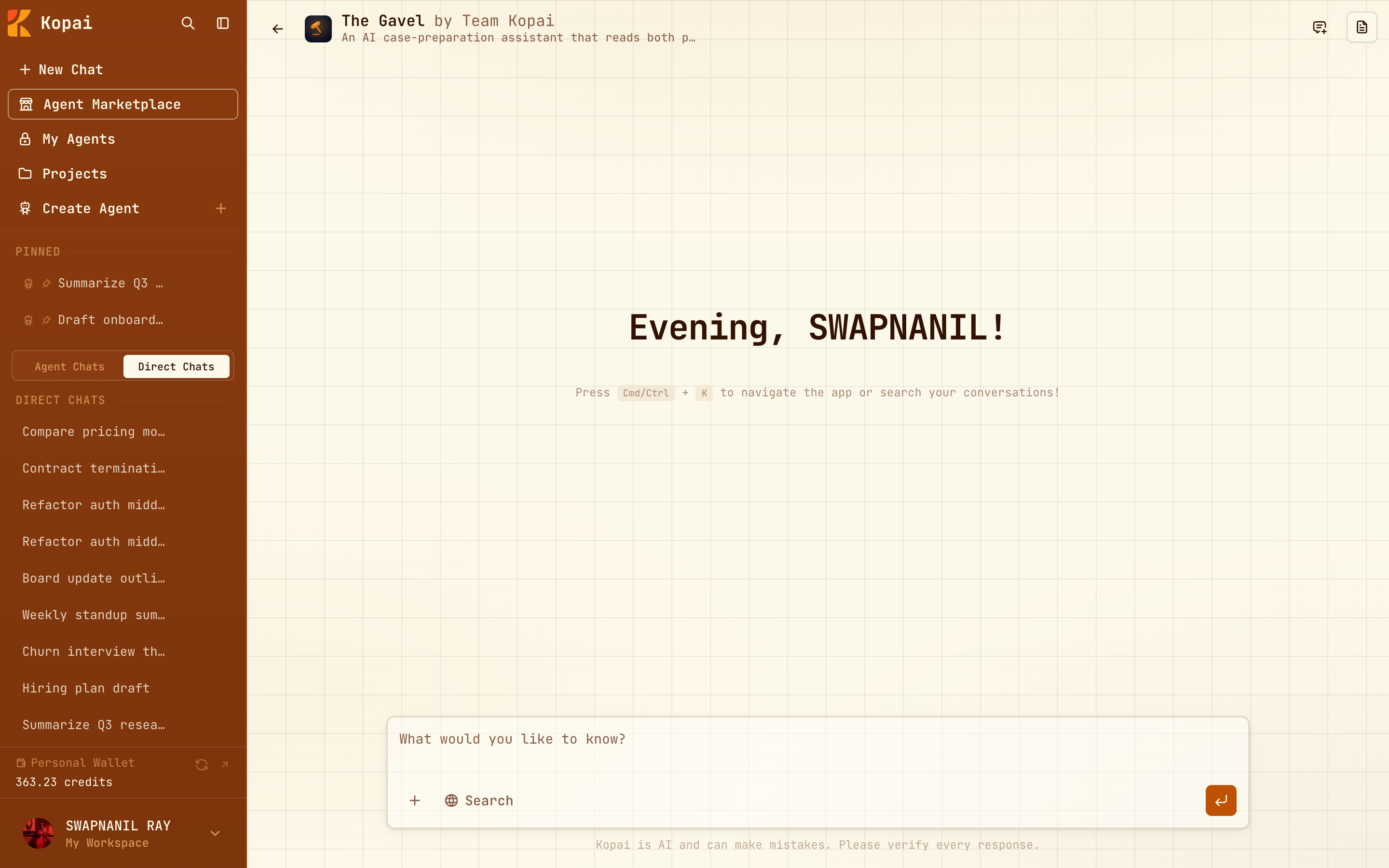
Click Start chatting. A new conversation opens with that agent, showing any starter prompts its creator wrote.
From your own agents
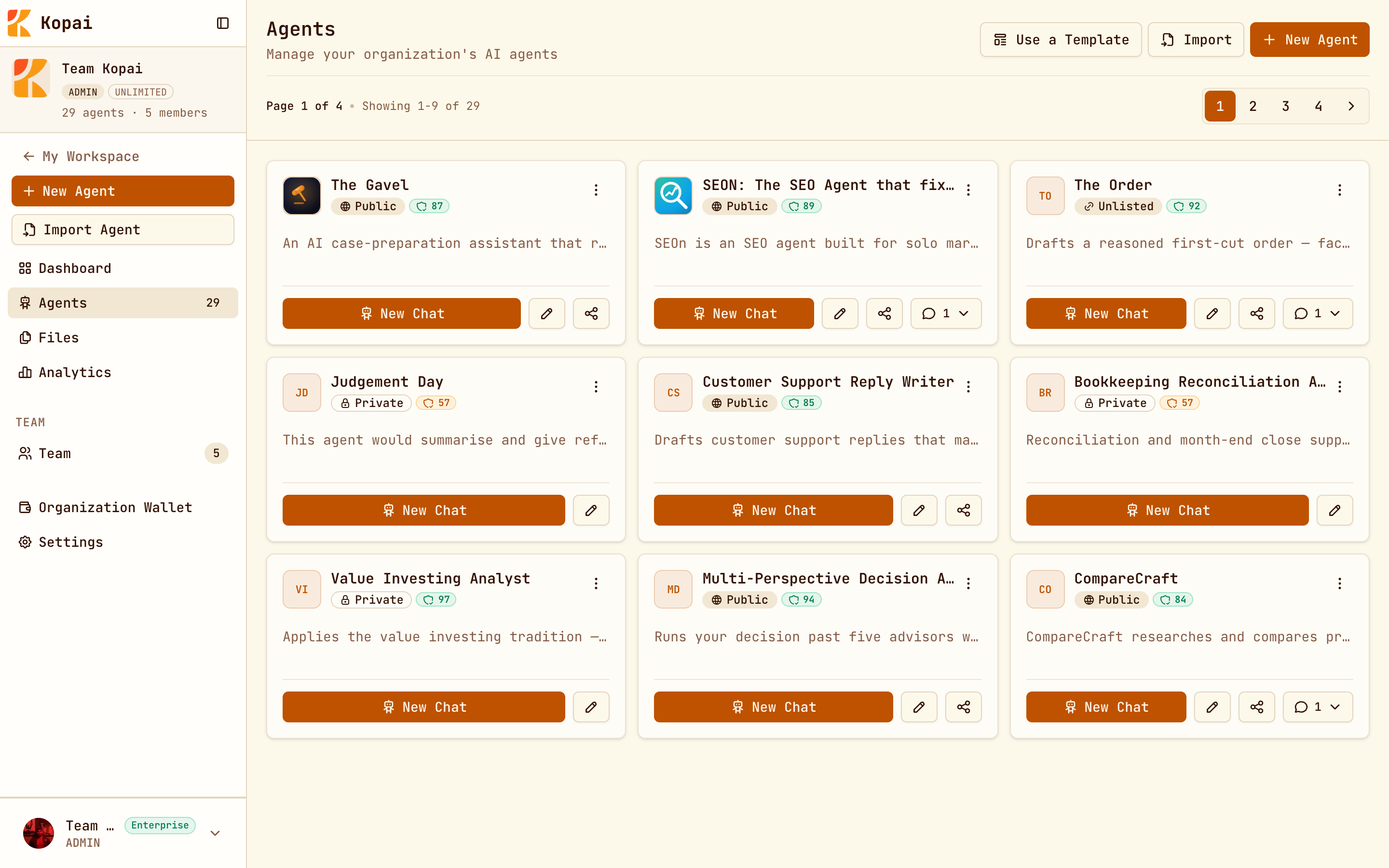
My Agents lists everything you've built across all your organizations. Inside an organization, Agents lists that org's agents, each with a New Chat button.
The conversation
Type and press Enter. The answer streams in as it's written, with the agent's tool use shown as it happens. If you close the tab mid-answer, reopening the chat picks the same stream back up.
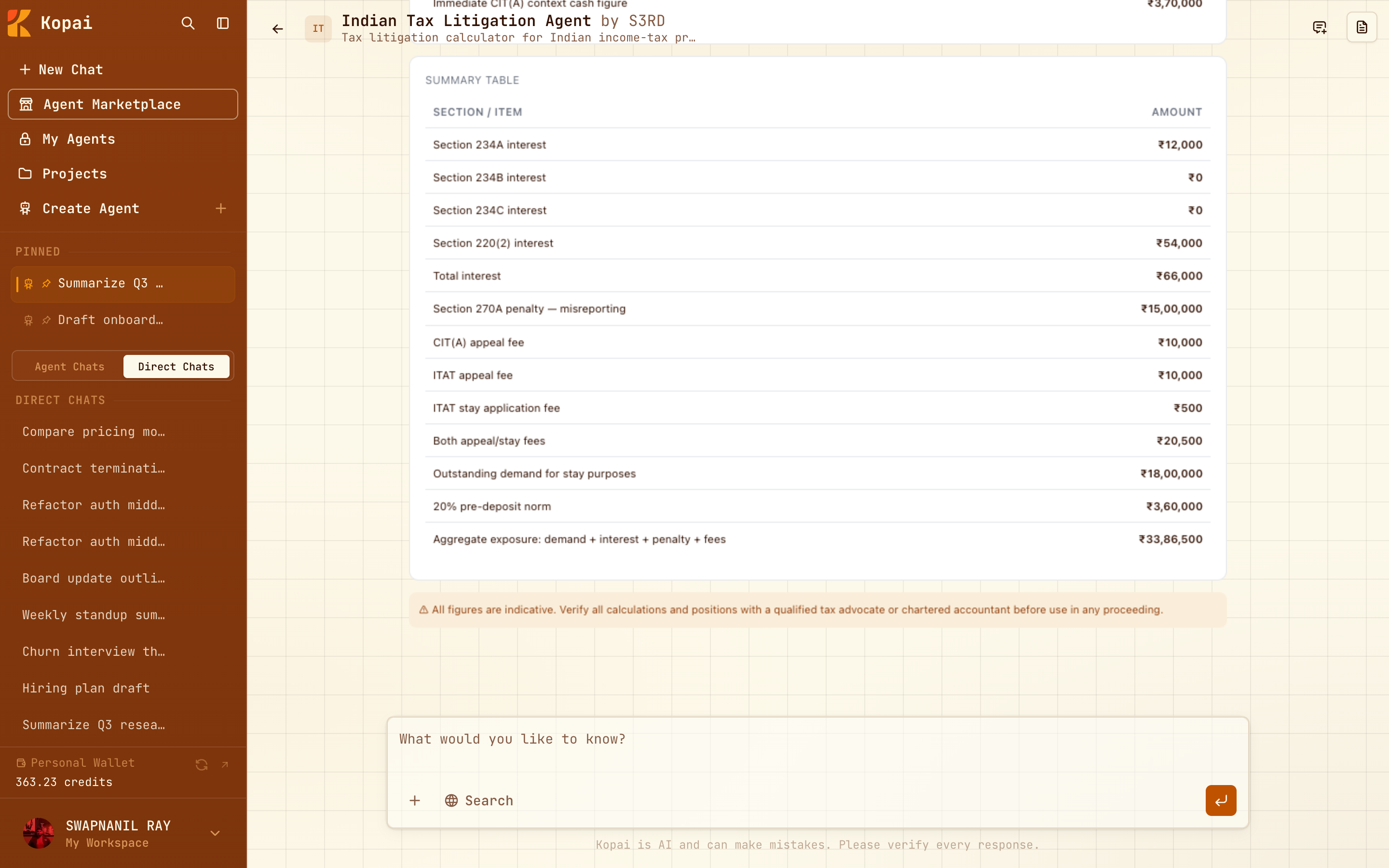
| Header | Which agent you're talking to, and the organization that publishes it. |
| Messages | The conversation. Tool use and reasoning appear inline as they happen. |
| Input bar | Your message, the + button for files, web search, and the model. |
Attaching files
The + button attaches files to a single message.
Documents always work, because Kopai extracts the text before the model sees it: .txt, .md, .docx, .xlsx, .pptx, .csv, .json. Images need a model that can see, and PDFs need a model that accepts files. The attachment menu tells you when the current model can't take one.
Attachments cost a little more
A message with an image or a long PDF costs more than a plain one, because the model has more to read.
If you want documents available in every conversation rather than one message, put them in a project or an agent's knowledge base.
What it costs
Each agent's card shows its estimated cost per message before you start, and most public agents give you three to five messages free. Your balance sits at the bottom of the sidebar, and every charge is itemised in Settings → Billing.
Your history
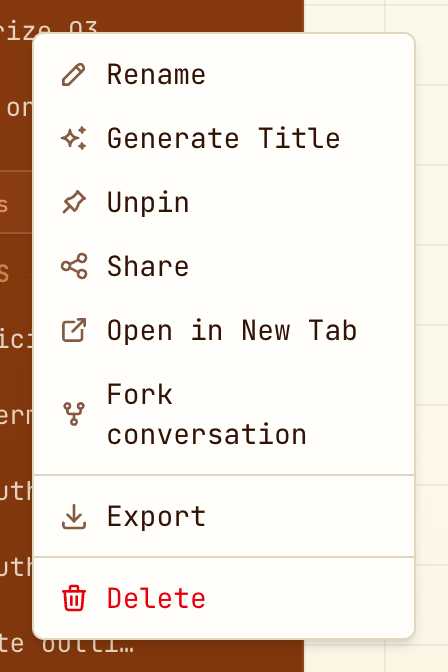
Conversations save automatically and appear in the sidebar under Agent Chats and Direct Chats. Right-click one to pin, rename, share, fork or export it.
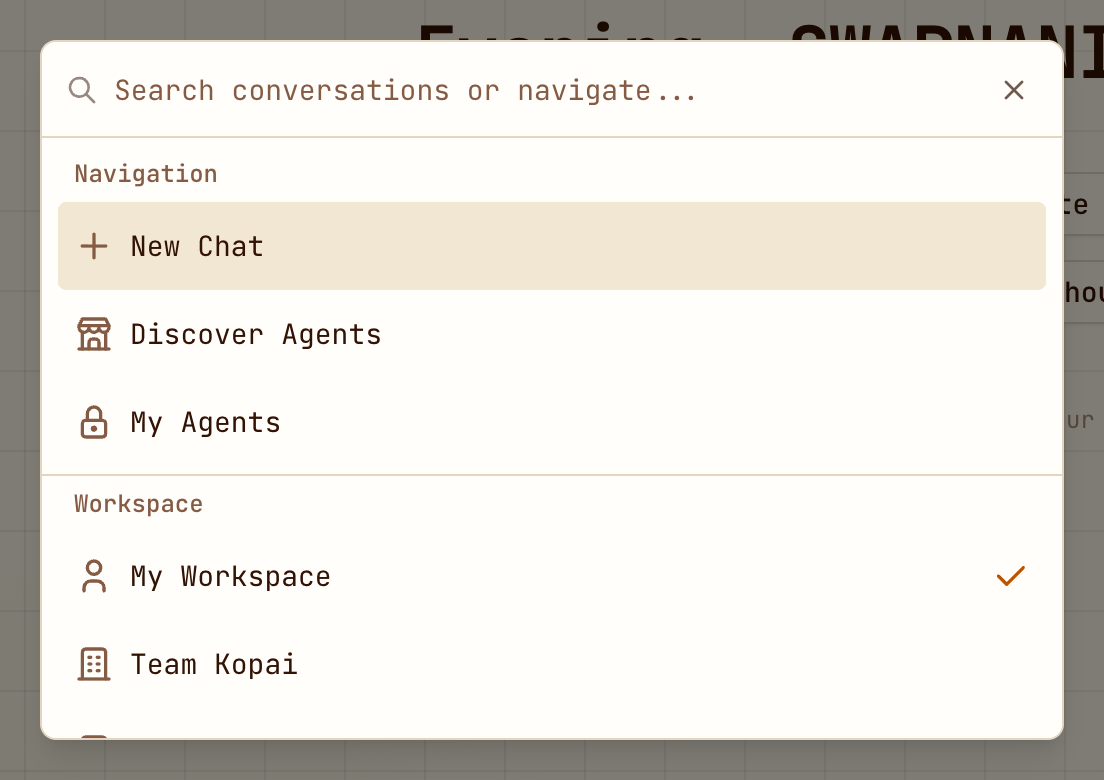
⌘K searches all of it and jumps anywhere in the app.