
Settings & personalization
Tune how Kopai talks to you, and manage your history, sessions and attachments.
Open Settings from the sidebar, or press ⌘S. There are seven tabs.
Profile
Start here, because it shapes every answer you get afterwards.
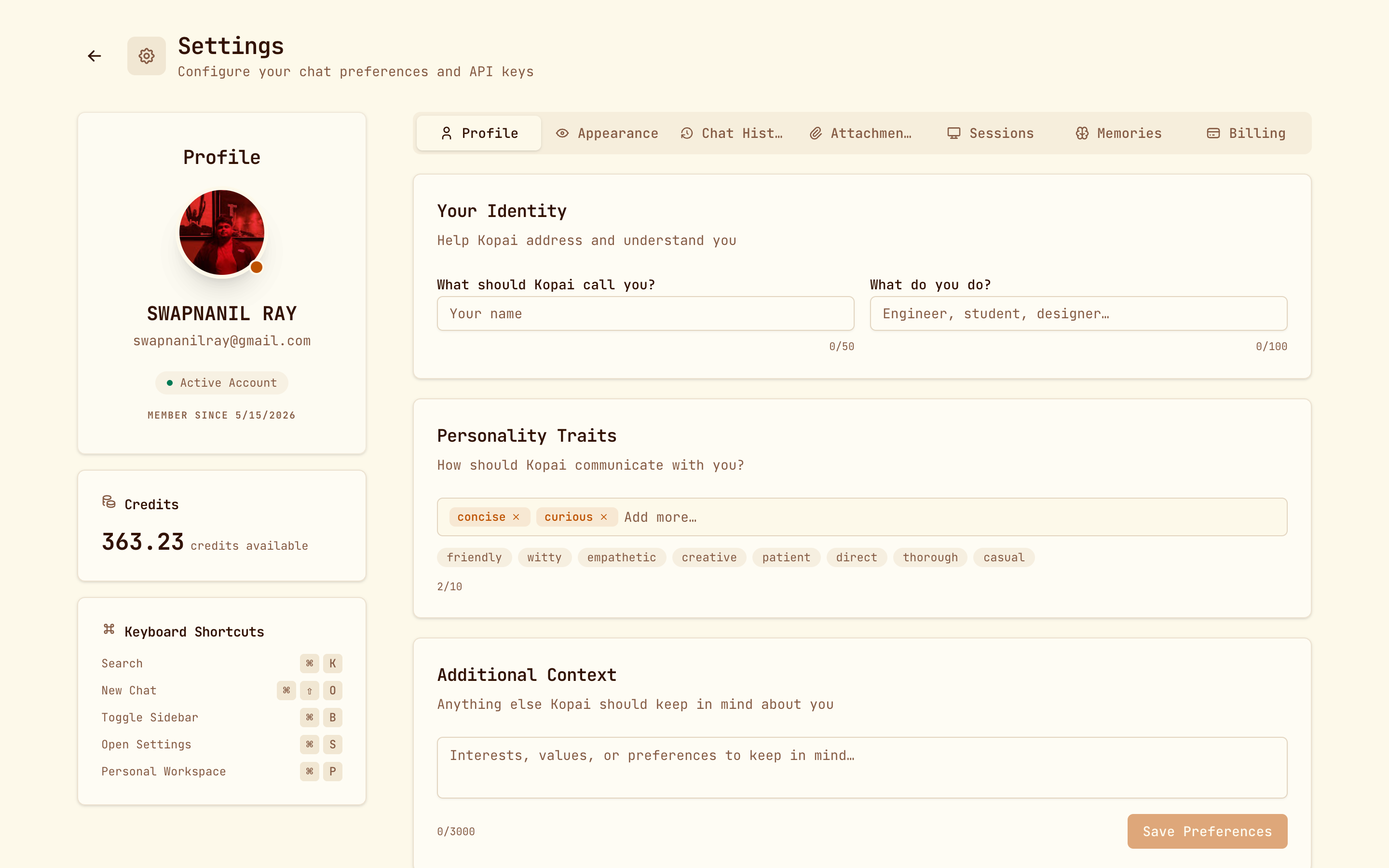
| Field | What it does |
|---|---|
| What should Kopai call you? | Your name, up to 50 characters. |
| What do you do? | Your role or context, like "commercial litigator" or "second-year physics student". Up to 100 characters. |
| Personality Traits | Up to 10: concise, curious, friendly, witty, empathetic, creative, patient, direct, thorough, casual. |
| Additional Context | Anything else worth keeping in mind. |
This is different from memory. Memory is what Kopai picks up by itself; your profile is what you tell it on purpose. Two well-chosen traits, like concise and direct, change the feel of every answer more than most prompt tweaks.
Appearance
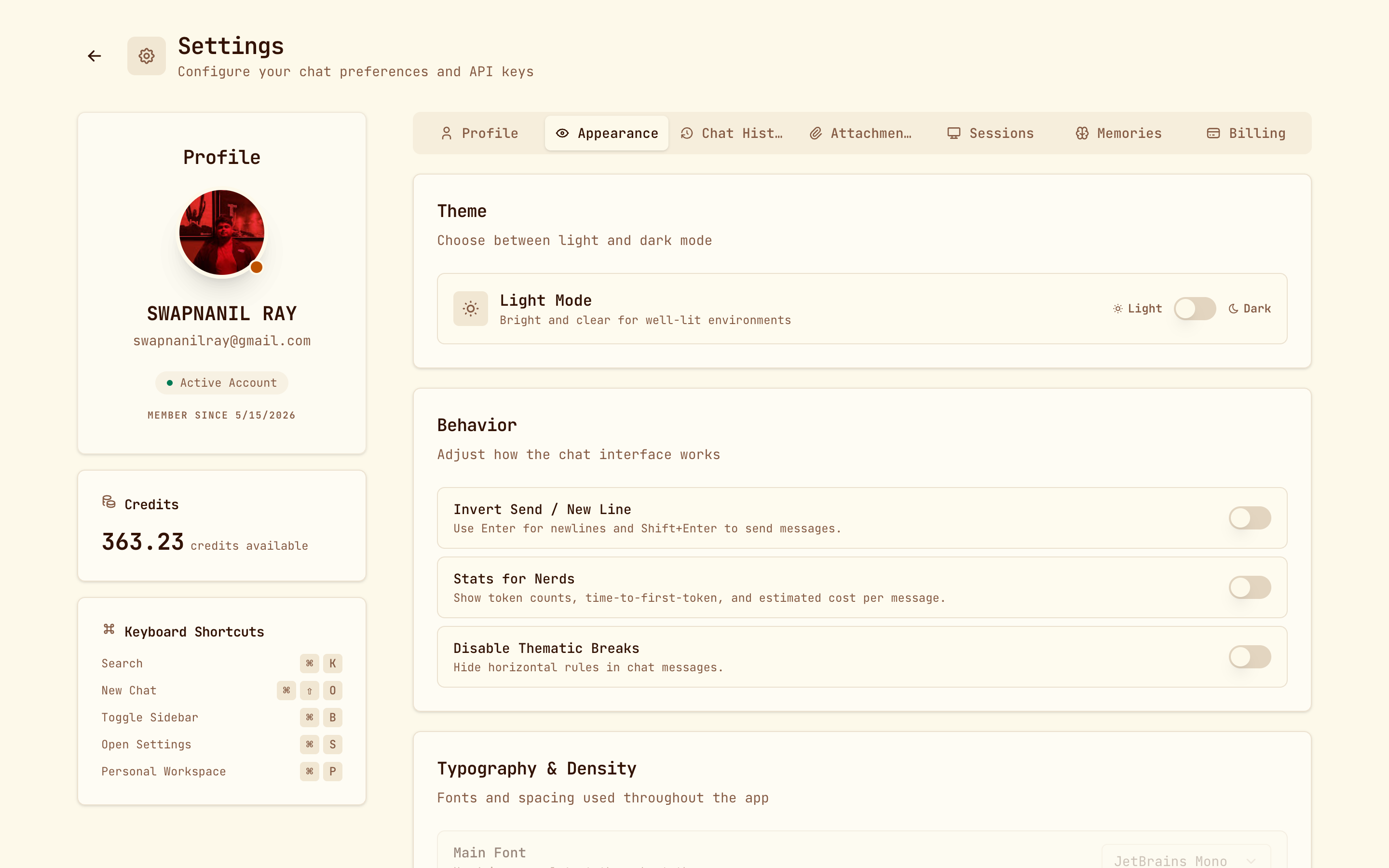
- Theme: light or dark.
- Behavior: swap Enter and Shift+Enter, show token counts and timings, turn off section dividers in answers.
- Typography: main font, code font, and how dense the chat is.
Chat History
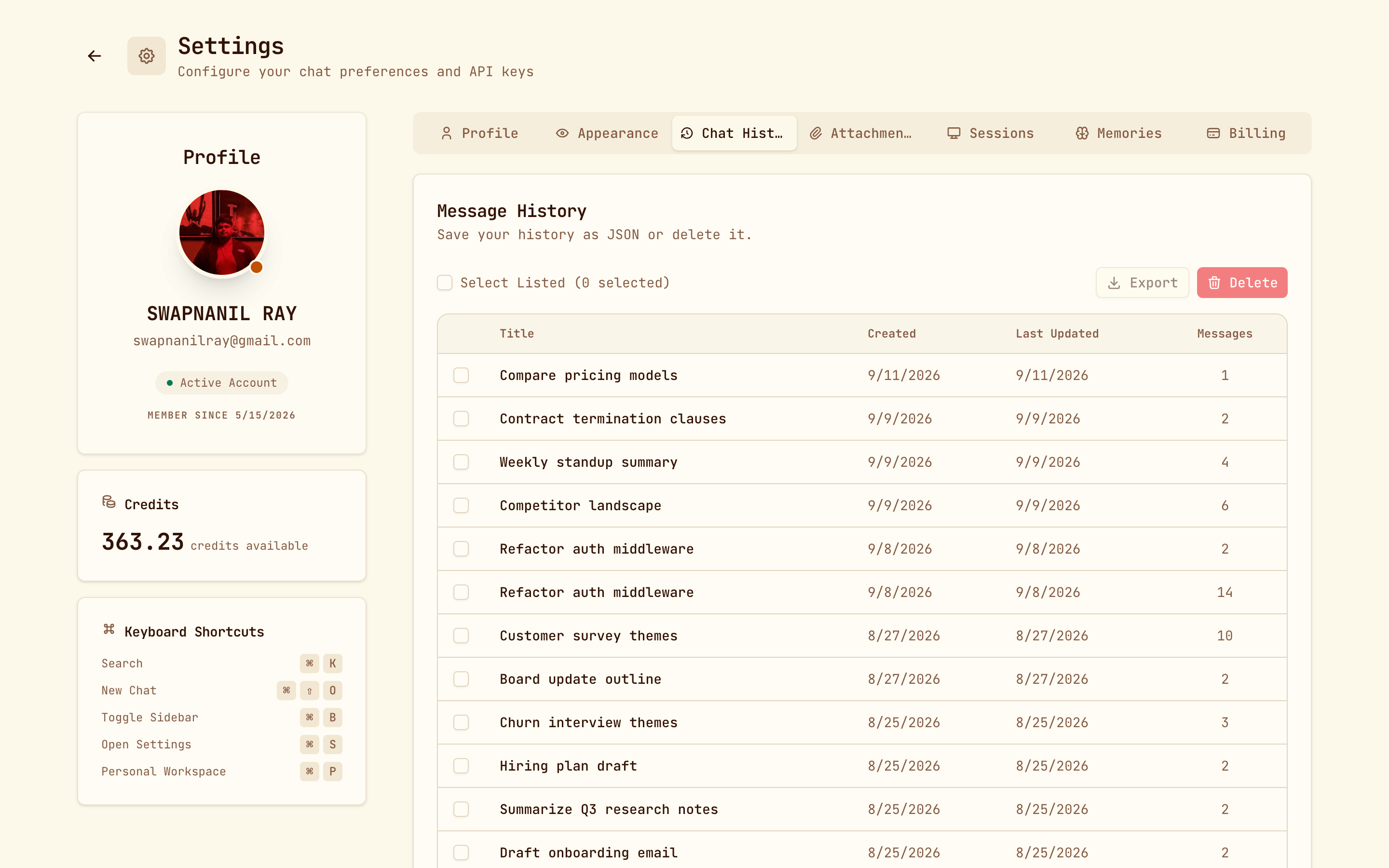
Every conversation, with bulk selection. Export downloads them as JSON, and Delete removes them permanently after a confirmation.
Attachments
Everything you've ever attached to a message, with downloads. Handy when you remember sending a file but not which chat it was in.
Sessions
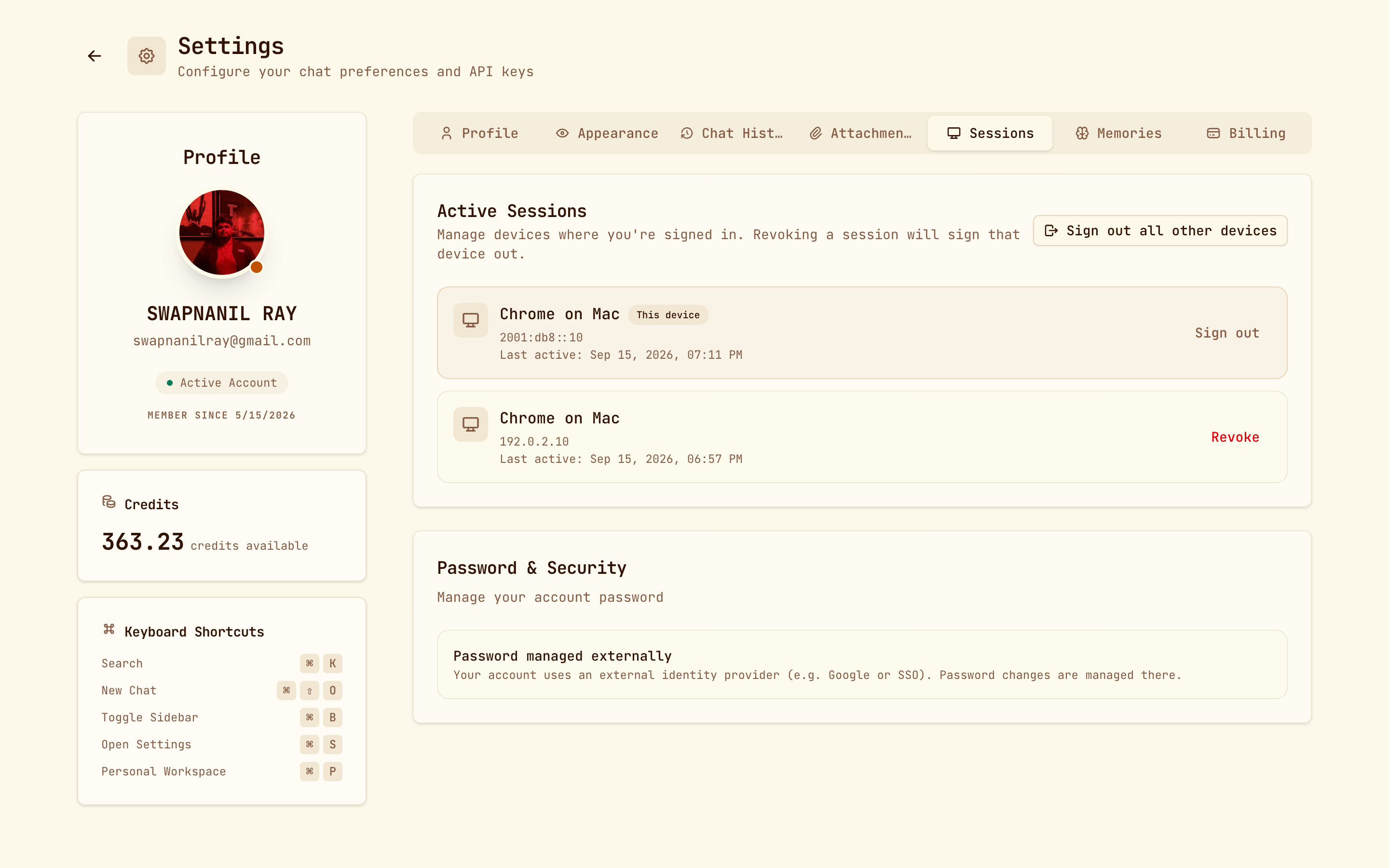
Your active sessions on every device, each of which you can sign out. Reach for this if you signed in somewhere you shouldn't have. It's also where you change your password, unless you sign in with Google, in which case Google handles it.
Memories
What Kopai remembers about you, with add and delete. See Memory.
Billing
Your balance, top-ups, monthly credit plan, auto-reload and transaction history. See Billing & credits.